
Market expansion
Show where you are — and where you’re going.
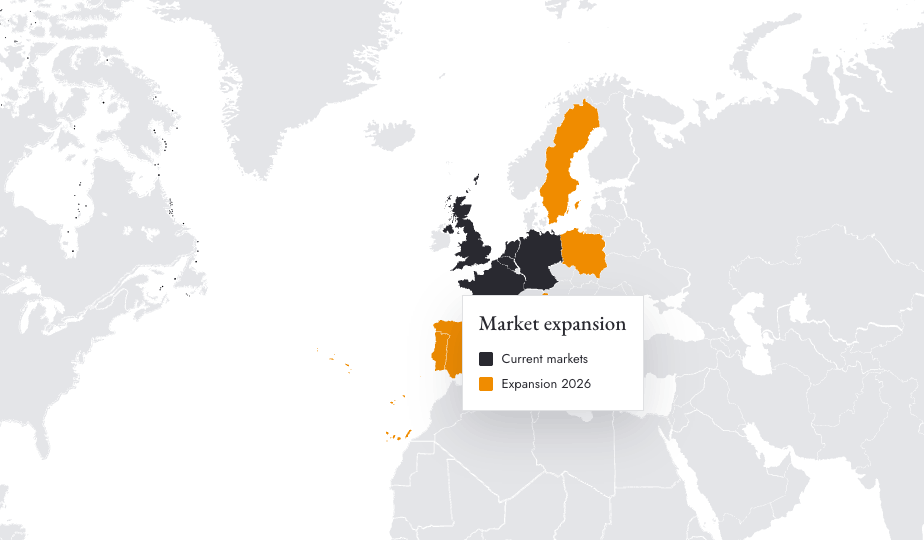
Two colors tell the whole story: current markets in one, expansion targets in another, and a legend that makes the plan unmistakable.
Map your expansion →Free to start, no sign-up. Runs in your browser.
The problem
Expansion plans die in bullet points.
“We’re entering five new markets next year” lands very differently as a list than as a map where the room can see the plan. Investors, boards and all-hands audiences read maps instantly.
Mappeus makes the before/after trivial: one color group for where you operate, one for where you’re going. Add the year to the legend, zoom to your region, export.
How it works
Two color groups, one story.
Color current markets
Select the countries where you operate today and give them your primary color.
Color the targets
Select the expansion markets and give them a contrasting accent — the eye goes straight to them.
Zoom and export
Zoom to the relevant region, check the legend, and export for your deck or memo.
Use cases
Where expansion maps show up.
- 01Fundraising and investor decks
- 02Annual strategy and planning documents
- 03Go-to-market launch announcements
- 04Internal all-hands roadmap updates
Why Mappeus
Built for the map, not the software.
Faster than design tools
No layers to ungroup, no countries to hunt for. Select, color, export — minutes, not hours.
Looks intentional by default
Hand-crafted map geometry, curated themes and precise brand colors keep every export presentation-ready.
The right file, automatically
Pick where the map is going — Mappeus prepares the correct format, size and resolution for that destination.
Everything stays editable
SVG exports keep every country as a separate named layer for Figma, Illustrator, Sketch or Affinity.
FAQ
Good questions.
How do I show phases of expansion?
Use one color group per phase — e.g. “Live”, “2026”, “2027”. Each phase gets its own color and legend row.
Can I zoom to just my region?
Yes — zoom to any continent or frame the exact view you want; the “On screen” export captures it precisely.
Can I match the deck’s brand colors?
Yes — exact HEX values, saved to your palette so the next update reuses them.
What export should I use for a strategy deck?
Pick the PowerPoint or Google Slides destination — you get a transparent-ready PNG sized for a 16:9 slide.
Start now
Make the plan visible.
Open the editor and paint your current markets — the targets take one more minute.
Free to start, no sign-up.