
Presentation maps
Maps your slides deserve.
Highlight the countries that matter, add a legend, and drop a crisp, transparent-ready map straight into PowerPoint, Google Slides or Keynote.
Create your presentation map →Free to start, no sign-up. Runs in your browser.
The problem
Every deck has a map slide. Most of them hurt.
Blurry screenshots, watermarked stock maps, clip-art globes — the map slide is where good decks go to die. And rebuilding one in a design tool takes longer than the rest of the deck combined.
Mappeus is built for exactly this slide: a clean vector world map, your colors, a legend that matches, and an export sized for a 16:9 slide with transparency intact.
How it works
Three steps to a finished map slide.
Pick your countries
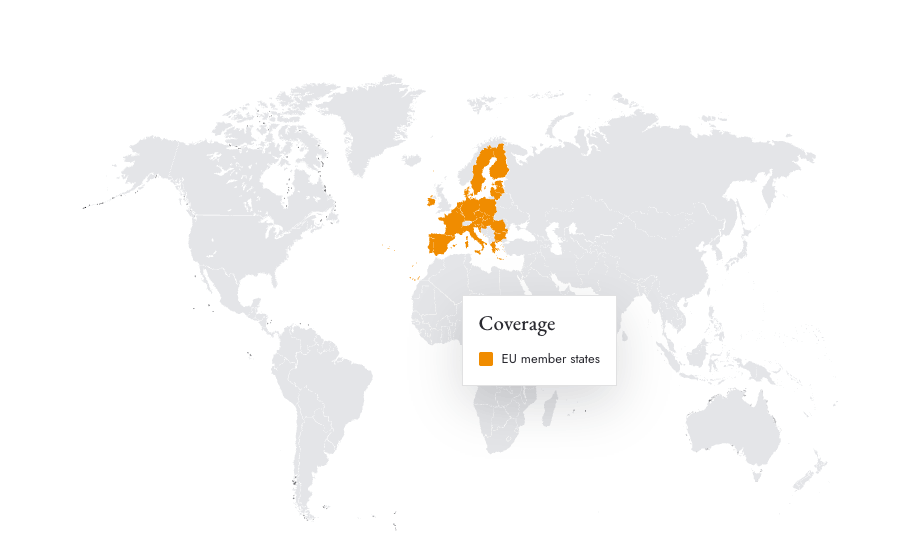
Click them on the map, search by name, or drop in a ready-made group — EU, NATO, G7, ASEAN and more.
Make it yours
Apply brand colors, switch themes, adjust borders and labels, and add a legend that builds itself.
Send it anywhere
Choose the destination — Mappeus prepares the right format and resolution automatically.
Use cases
Map slides people actually make.
- 01“Where we operate” slides for company overviews
- 02Rollout and launch-plan maps for project updates
- 03Research coverage maps for conference talks
- 04Course and lecture maps for teaching
Why Mappeus
Built for the map, not the software.
Faster than design tools
No layers to ungroup, no countries to hunt for. Select, color, export — minutes, not hours.
Looks intentional by default
Hand-crafted map geometry, curated themes and precise brand colors keep every export presentation-ready.
The right file, automatically
Pick where the map is going — Mappeus prepares the correct format, size and resolution for that destination.
Everything stays editable
SVG exports keep every country as a separate named layer for Figma, Illustrator, Sketch or Affinity.
FAQ
Good questions.
What size should a presentation map be?
For a 16:9 slide, Mappeus exports a 3200 px-wide PNG by default — crisp on any projector or Retina display. Pick the PowerPoint, Slides or Keynote destination and the sizing is handled.
Will the map background be transparent?
Yes — choose a transparent canvas and the exported PNG keeps transparency, so it sits on any slide background.
Can I add a legend?
Yes. The legend builds itself from your color groups — name the groups, drag the legend anywhere on the map, and it exports with the image.
Does it work with Google Slides and Keynote?
Yes — there are dedicated export destinations for PowerPoint, Google Slides and Keynote, each with the right size and format.
Start now
Fix the map slide for good.
Open the editor, highlight your countries, and export a slide-ready map.
Create your presentation map →
Free to start, no sign-up.